All guides
Cloud Vault: keep every return you send
The Cloud Vault, free up to 200 MB, keeps every return you send; how its space, plans, upgrades and renewals work, and what if a plan ends.
Coming soon What this guide describes isn't available yet.
Last checked November 12, 2026
The Cloud Vault keeps a copy of every return a workspace sends, and syncs its files across your computers. It is free: your personal workspace has a Cloud Vault of 200 MB. For more space, or for another workspace, choose a plan: 1 GB at ₱200.00 a month (₱2,400.00 a year) or 10 GB at ₱500.00 a month (₱6,000.00 a year), billed annually.
What it keeps
- Every return you send, kept with its final copy (PDF) and the file sent to BIR.
- Your profiles and saved returns, synced across the computers signed in to the workspace.
- Earlier versions and a 30-day trash, so a file changed or deleted by mistake can be restored.
Free with your personal workspace
Your Personal workspace's Cloud Vault is on from the start, with 200 MB, free. There is nothing to pay or switch on: sign in to the app with your personal workspace and send returns.
The Cloud Vault page shows how much space the workspace uses, for example This workspace: 120 MB of 200 MB used, with a bar, and its plan: Free Cloud Vault, 200 MB. The workspace's Overview and the app's Settings show it too. Staff see it only with the See the vault permission.
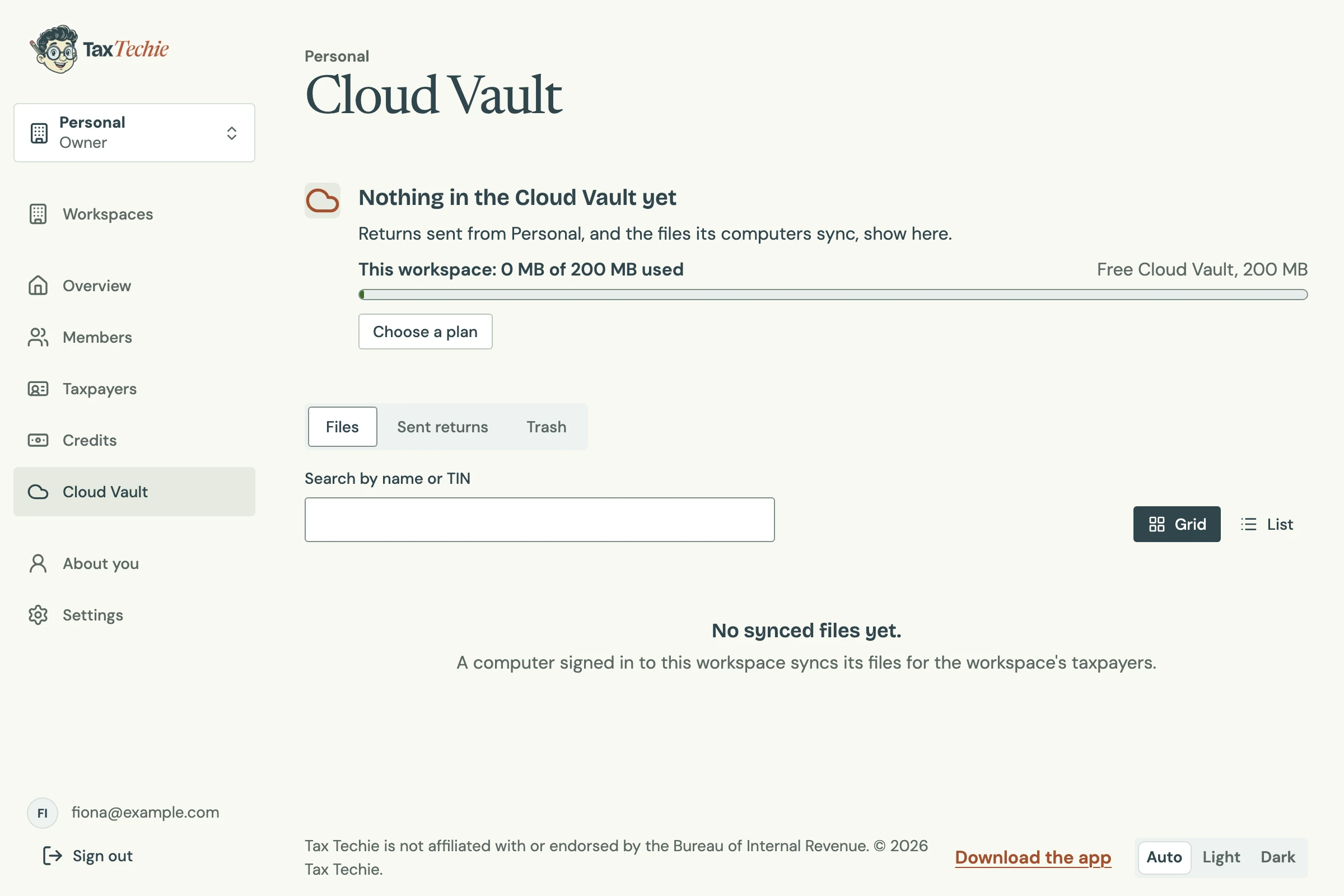
The free Cloud Vault is one per person, on their personal workspace. Another workspace comes with a plan of its own: see Workspaces and your staff.
Plans for more space
You need to be the workspace's owner, or have the Billing permission.
- On the Cloud Vault page, choose Choose a plan. It opens the Credits page's Cloud Vault section, with a row for each plan.
- Choose Get 1 GB or Get 10 GB.
- Choose Pay to open the secure payment page, and pay the year with GCash, Maya, a card or online banking.
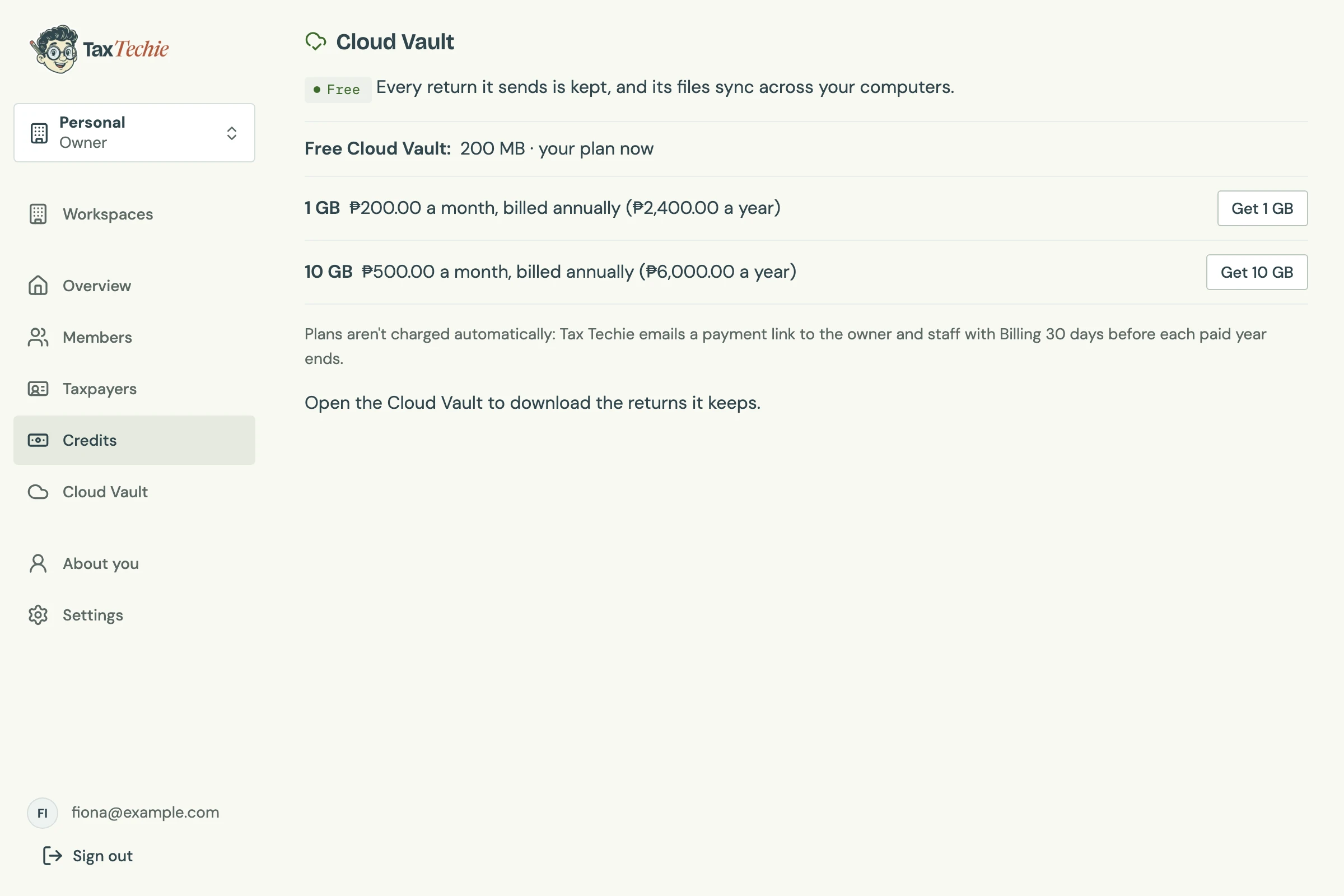
When the payment arrives, the plan starts at once and replaces the free 200 MB: a personal workspace on 1 GB has 1 GB. The Credits page then shows the vault as Active, with its plan and the day it is paid through. Only plans at least as large as the space the workspace uses are offered.
Upgrade
A workspace on a plan can move to a larger one at any time: on the Credits page (or Upgrade on the Cloud Vault page), choose Upgrade to 10 GB. The button says what it costs: the difference for the months left in the year (part of a month counts as a whole month). The end date stays the same, and the larger size starts once it is paid.
There is no smaller plan to move down to. To get one, cancel the plan (below) and choose again once it ends.
Renew
Plans aren't charged automatically. Tax Techie emails a payment link to the owner and staff with Billing 30 days before each paid year ends, for the same plan at its current price. Paying it early never changes the size before the new year starts. If the plan is no longer sold, the email and the Credits page ask you to choose next year's plan: Renew with 1 GB or Renew with 10 GB.
Send returns to it
Nothing changes in the app: send returns with Submit / Final Copy, signed in to the workspace. The result says Saved to the Cloud Vault once its files are kept: the return, its final copy as a PDF, the file sent to BIR and the Submit Successful screenshot. The app's Submission history shows it too.
See and download your files
Open Cloud Vault in the workspace. Staff need the See the vault permission.
- Files: a folder for each taxpayer, then each form, with the files synced from your computers.
- Sent returns: every return sent, with its files (returns sent before Tax Techie made screenshots have three, without one). Filter by TIN, form or period.
- Trash: what was deleted in the last 30 days. Restore brings a file back (the owner, or staff with Delete cloud copies).
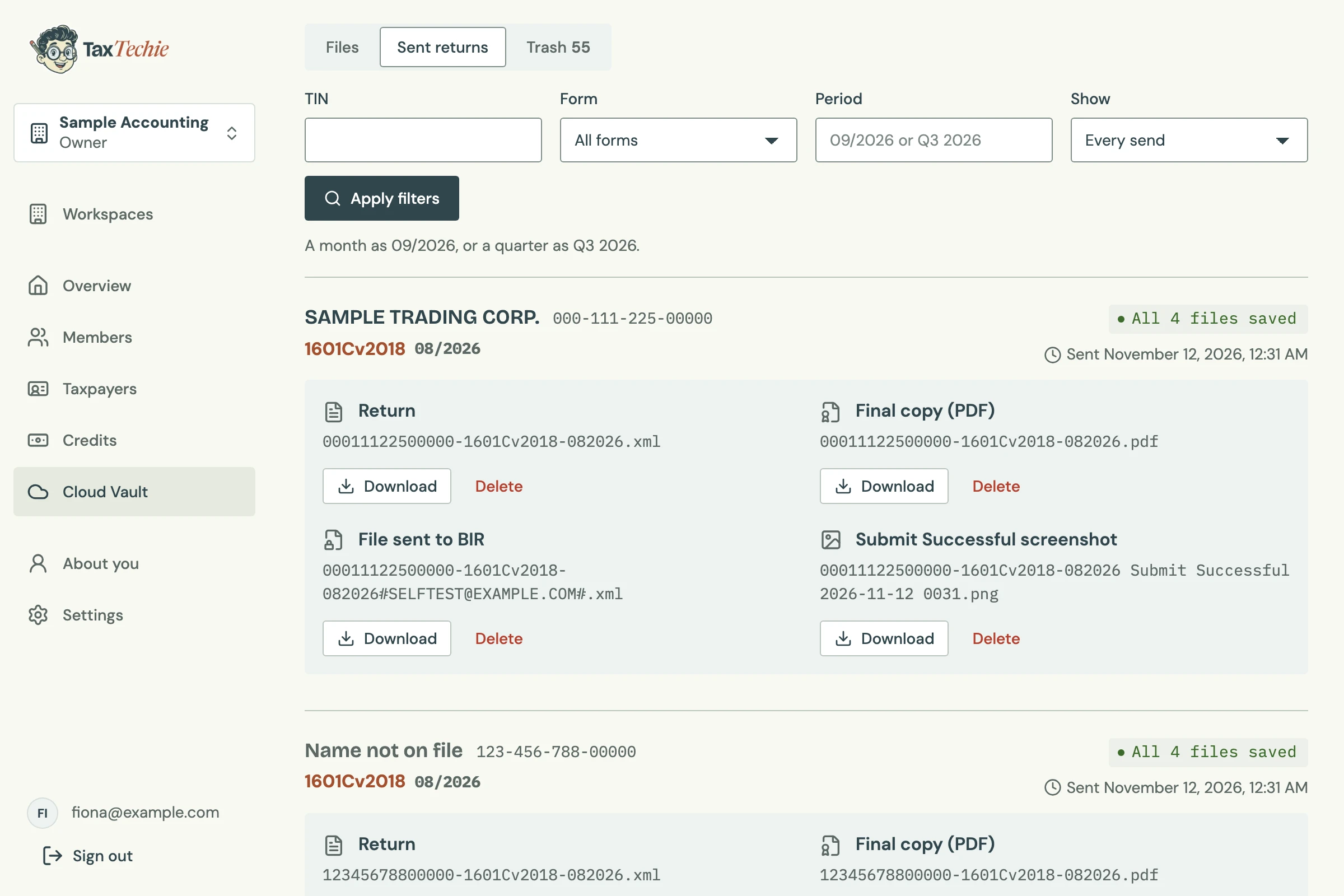
Choose Download beside a file. Versions shows a file's earlier versions.
When it is almost full, or full
The space counts every file the Cloud Vault keeps: synced files with their earlier versions, the trash until it is emptied or its 30 days pass, and every sent return's files. At 80%, the page and the app say The Cloud Vault is almost full, and Tax Techie emails the owner and staff with Billing.
When it is full, nothing is deleted and sending returns to the BIR server isn't affected. Only new copies wait on your computers, and go to the Cloud Vault once there is room.
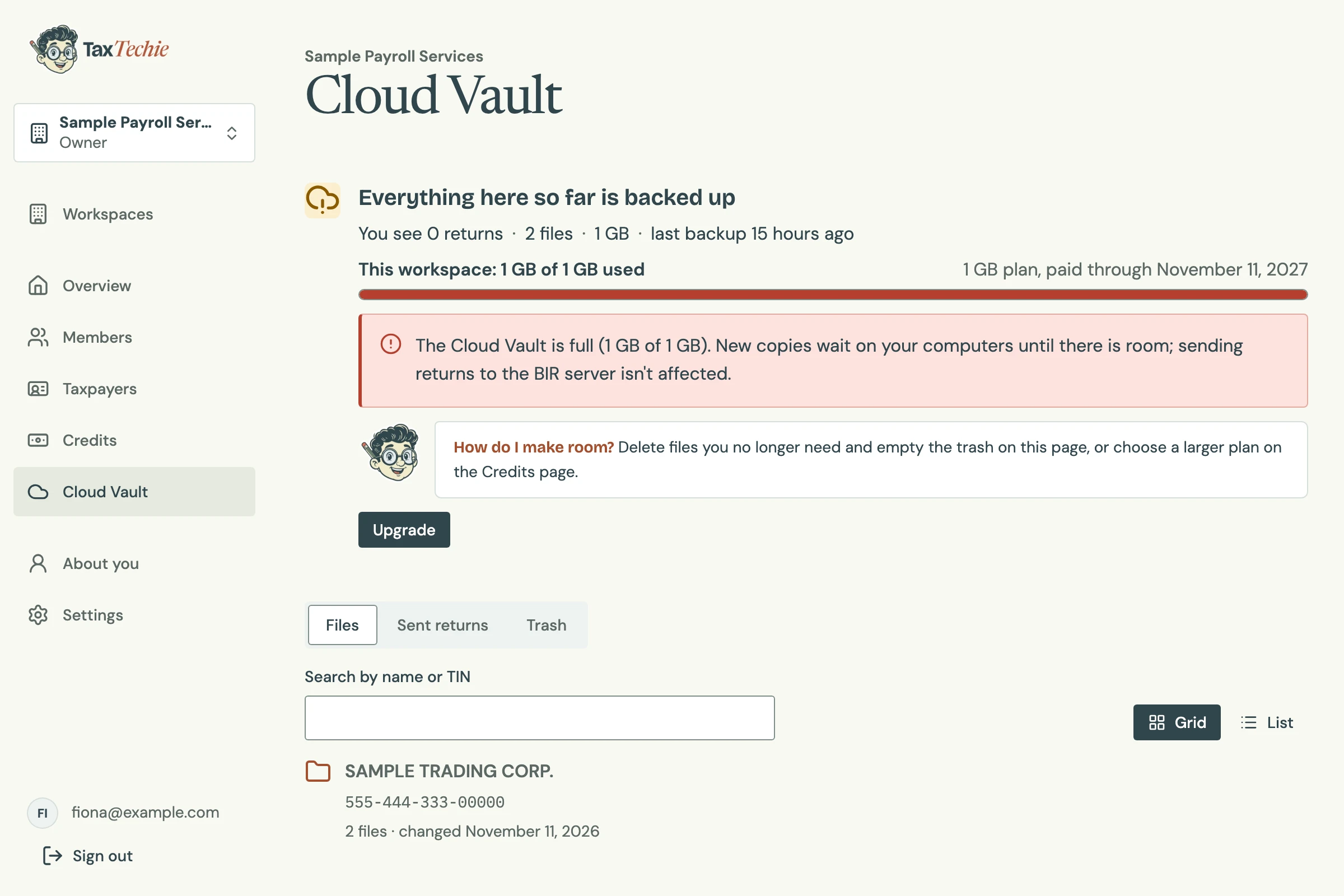

How do I make room? It depends on what you may do. The owner deletes files no longer needed and empties the trash on the Cloud Vault page, or chooses a larger plan on the Credits page while one is offered. Staff with Delete cloud copies delete synced files they no longer need; only the owner can empty the trash. Staff with Billing choose a larger plan on the Credits page, or ask the owner to delete files and empty the trash. Anyone else asks the workspace owner.
Cancel a plan
Only the owner can cancel. On the Credits page, choose Cancel the Cloud Vault plan (on a personal workspace, Cancel the 1 GB plan or Cancel the 10 GB plan). The plan runs to the end of its paid year, and until then Keep the Cloud Vault (or Keep the 1 GB plan) undoes it.
When the year ends, cancelled or not renewed:
- A personal workspace goes back to its free 200 MB and keeps syncing. Nothing is deleted. If its files use more than 200 MB, new copies wait on your computers until there is room again, or it is on a plan.
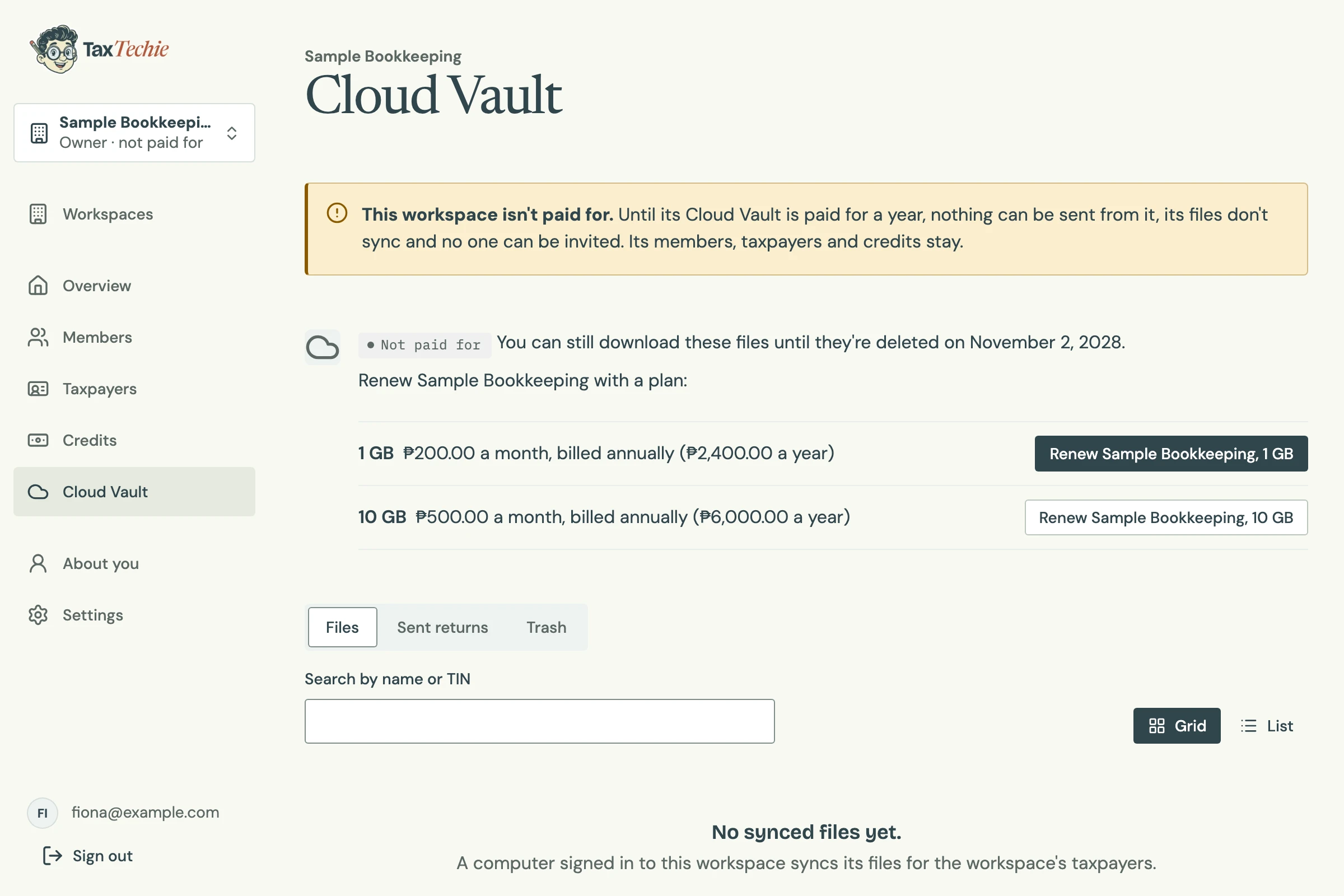
- Any other workspace isn't paid for: nothing can be sent from it, its files no longer sync, and staff can no longer see them. The owner can still download them until the date the page shows, two years after the year ended. To start it again, the owner or staff with Billing choose a plan on the Cloud Vault or Credits page, for example Renew Sample Accounting, 1 GB, and pay its year.
Questions
Does every computer need the vault?
No. The vault belongs to the workspace. Every computer signed in to the workspace, by someone with See the vault, syncs its files.
Do I need a plan to send returns?
Not from your personal workspace: its Cloud Vault is free, and a plan only adds space. Sending a return never waits for the Cloud Vault, even when it is full. Another workspace sends returns only while its plan is paid for.