All guides
How to fill in and validate a BIR return
Add a taxpayer, start a return, fill it in, validate it, then save and print it: the steps every form in Tax Techie shares.
Last checked November 2, 2026
Add a taxpayer, then prepare a return for them, from a blank form to a validated return you can save, print and send. Every form in Tax Techie works this way; this guide uses 1601Cv2018.
Before you start
- The taxpayer's Certificate of Registration (BIR Form 2303), for their TIN (Taxpayer Identification Number), branch code, RDO (the Revenue District Office they're registered with), registered name and address.
- The email address BIR should write to. BIR sends its confirmation of each return sent to this address.
- The figures for the period the return covers.
Add a taxpayer
-
On the Taxpayers screen, click New taxpayer.
-
Fill in the taxpayer's background information, as on their Certificate of Registration: the TIN with its branch code (
00000for the head office), the RDO, the taxpayer's name, line of business, registered address, zip code, telephone and email address.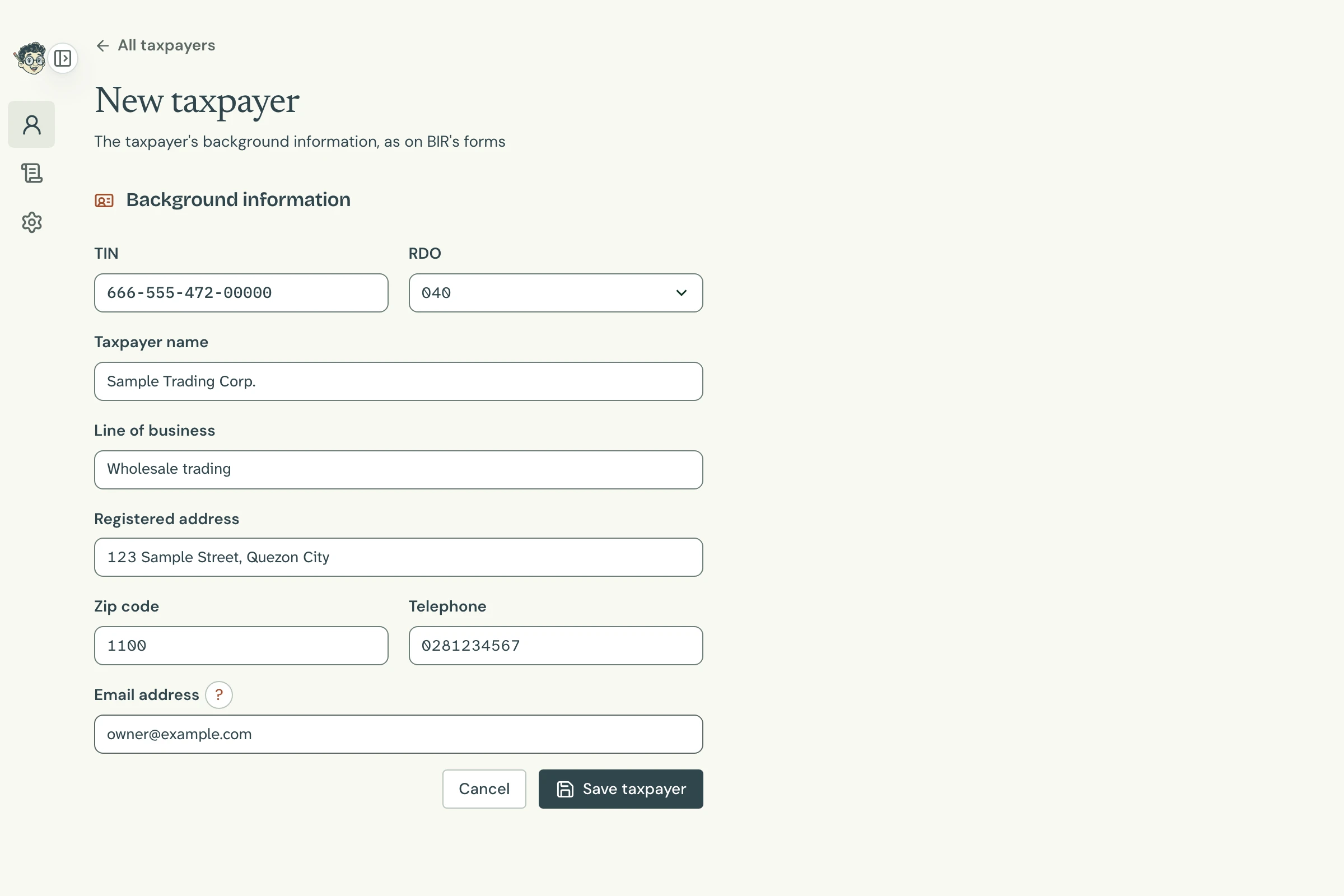
New taxpayer Open full size -
Click Save taxpayer. Each form you fill in for this taxpayer starts with this information, so you type it only once.
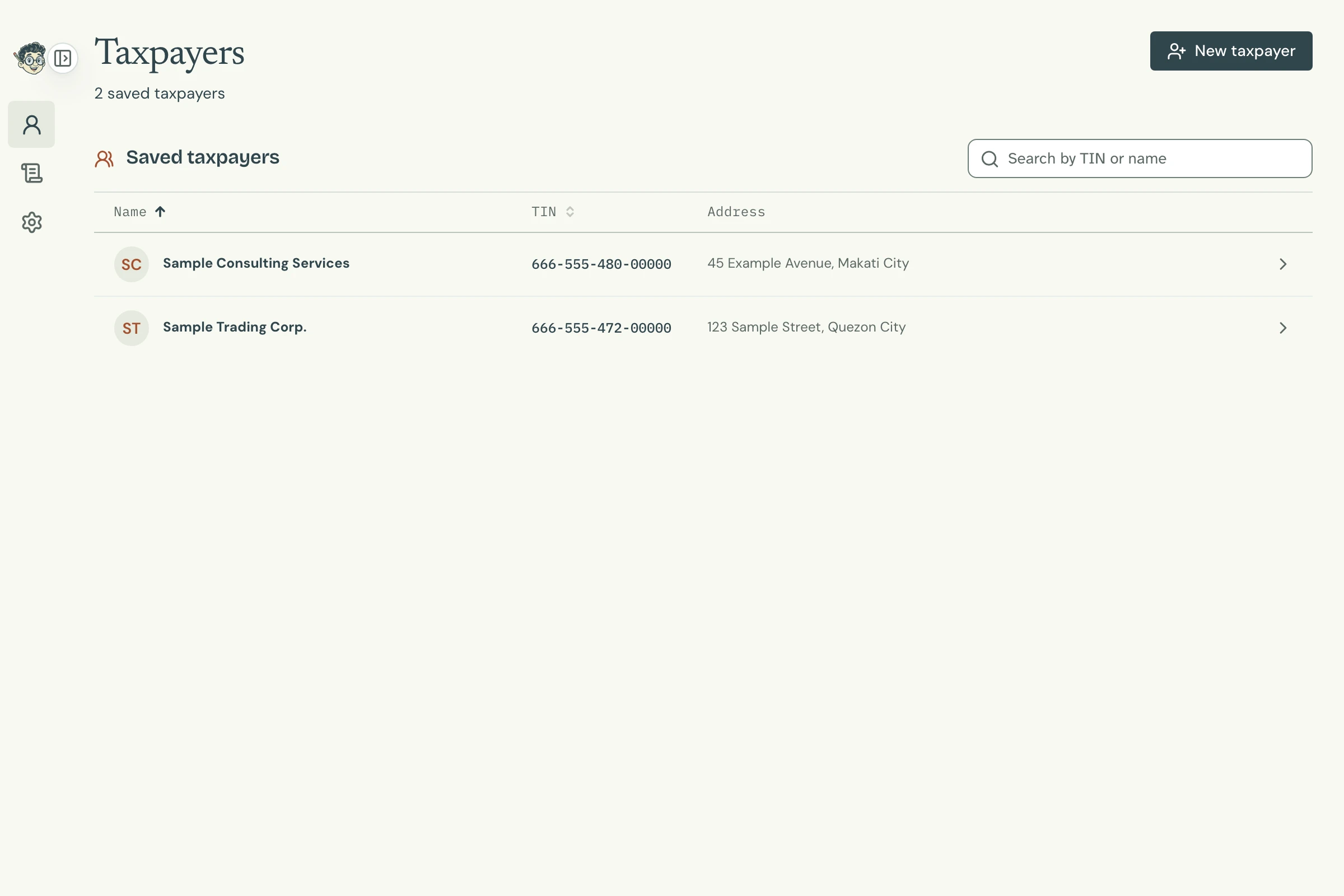
The Taxpayers screen lists everyone you've added. Search by TIN or name, and click a taxpayer to open their page.

Why was the TIN refused? A TIN's 9th digit is a check digit worked out from the first eight, so a mistyped digit shows You have entered an incorrect TIN. Compare it with the Certificate of Registration.
Start a return
-
On the taxpayer's page, click New return.
-
Type the form's name, or part of it, and choose it: click it, or press Enter.
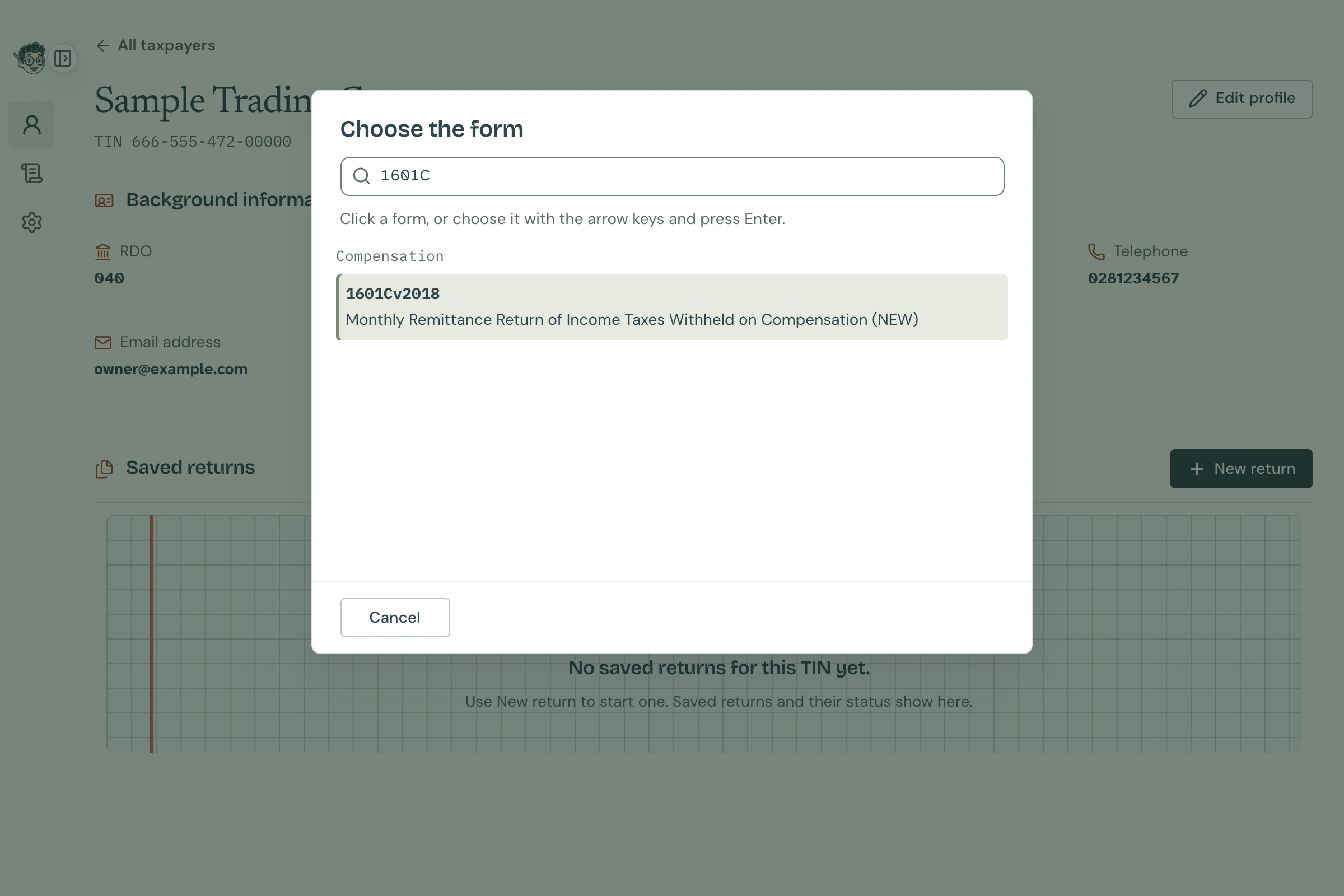
Choose the form Open full size -
The first time, Tax Techie asks you to type the taxpayer's TIN and email address again, under Confirm the TIN and email address. Type them, then click Confirm and save. BIR's Offline eBIRForms asks this too: it makes sure BIR's confirmation goes to the right address.
The return opens with the taxpayer's background information already in it.
Fill it in
Fill in the items for the period, from the top. Tax Techie works out the totals as you type, as BIR's Offline eBIRForms does. A form with more than one page shows them as tabs, such as Page 1 and Page 2 · Schedule 1.
What each item asks is in the form's own guide:
Validate
Click Validate at the bottom of the return. Tax Techie checks the return as BIR's Offline eBIRForms does, with the same rules and the same messages. If something is missing, a message says which item.
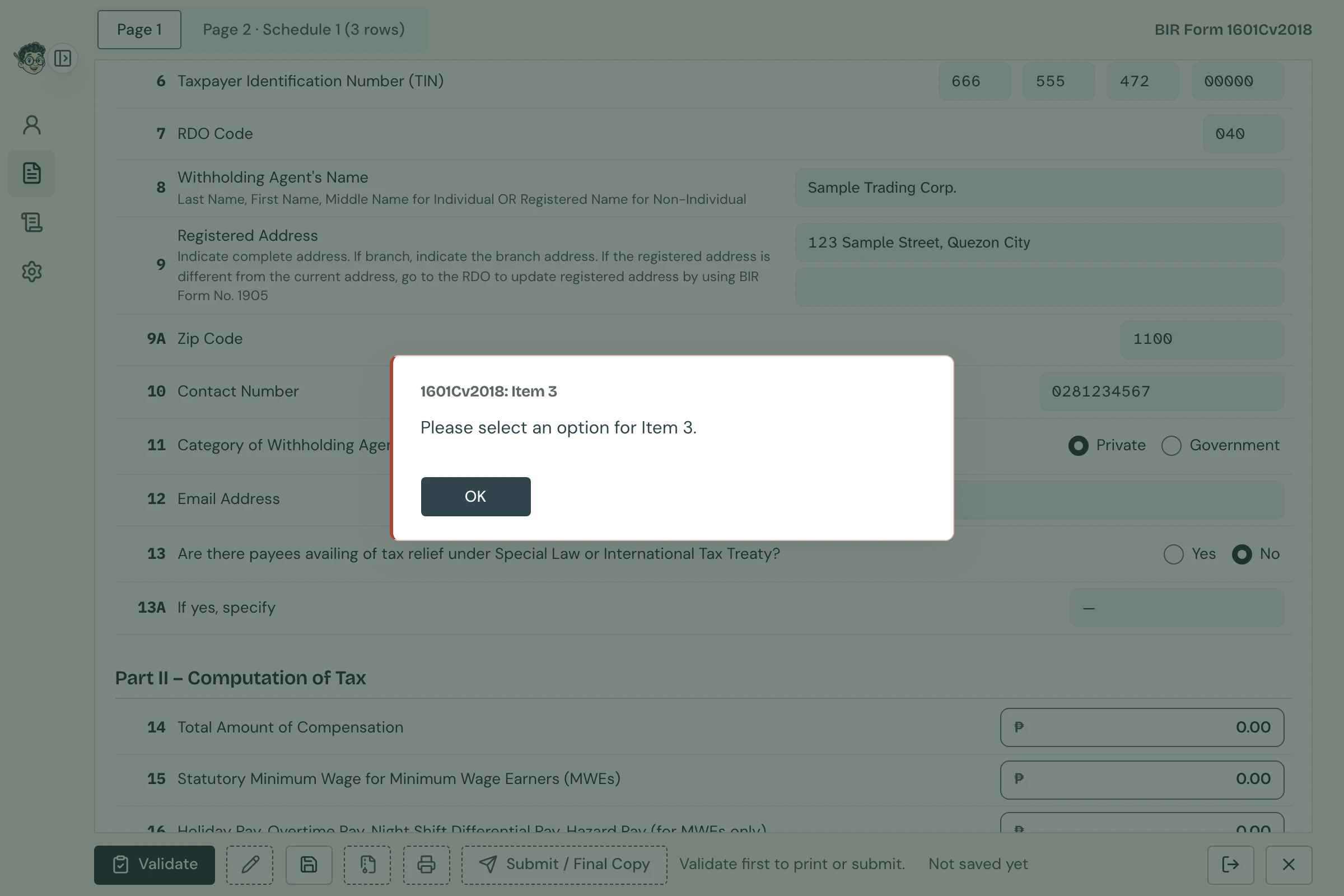
Fix that item and click Validate again. When everything is in order, Tax Techie says Validation successful. Click on Edit if you wish to modify your entries. The return is then locked; to change it, click Edit (the pencil) and validate again.
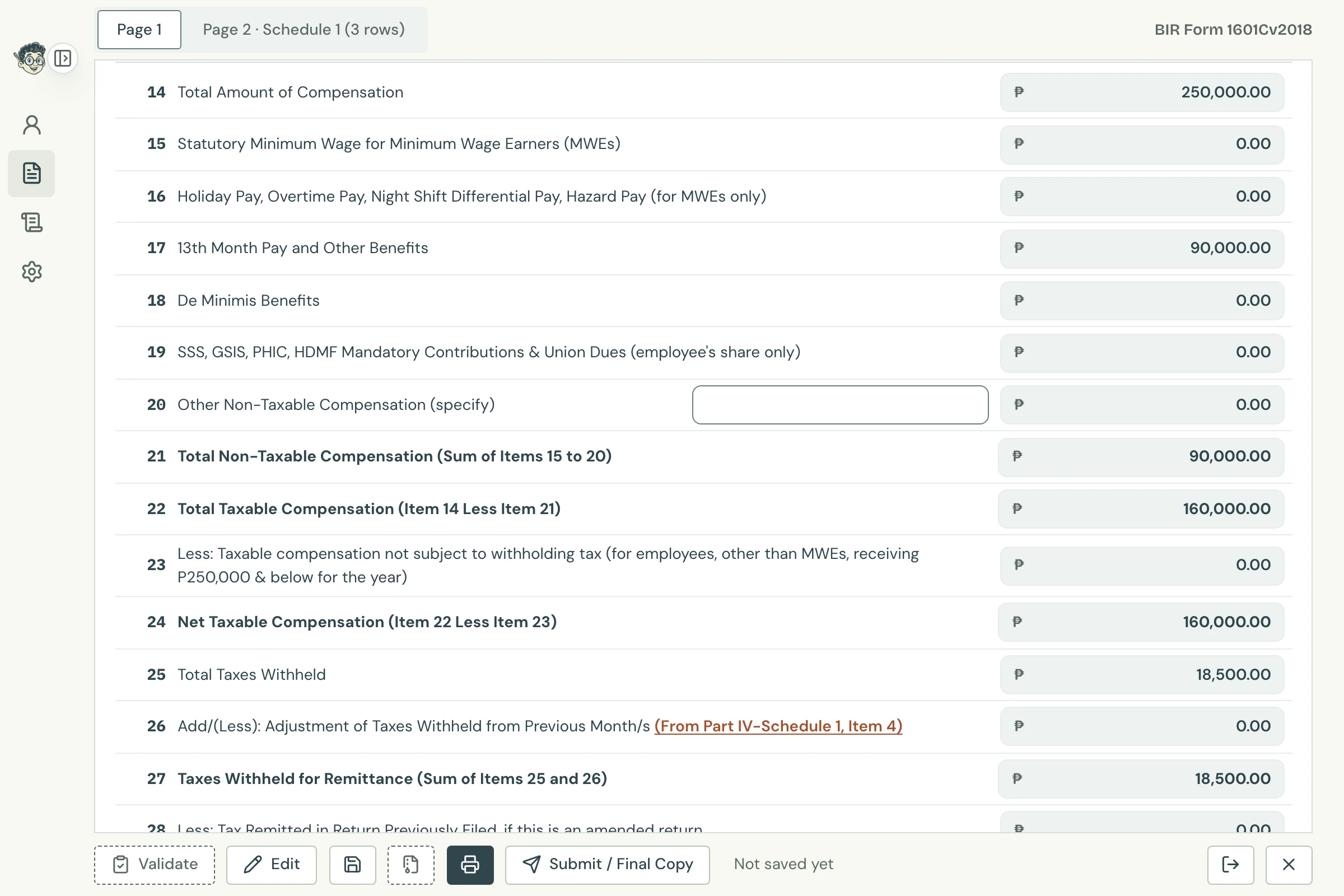
Why can't I print yet? Print and Submit / Final Copy need a validated return, as in eBIRForms: the line beside them says Validate first to print or submit. until it is.
Save and print
- Save (the disk, or Command-S) keeps the return in the taxpayer's saved returns, as a draft you can open and change later. Its file is the same as eBIRForms', so it opens there too.
- Print makes a PDF of the return, to print or keep.
Send it
When the return is ready, send it to BIR with Submit / Final Copy: see Submit / Final Copy.
Questions
Do I have to fill in a return in one go?
No. Save it as a draft, and open it later from the taxpayer's saved returns.
Can I change a taxpayer's details?
Yes. On their page, click Edit profile. Returns you start after that use the new details; returns already saved keep theirs.
How do I correct a return I already sent?
Start a new one for the same period and choose Yes for Amended Return. It is saved as a new version, and the first one is kept.