All guides
Your Tax Techie account
Make a Tax Techie account, tell us about your work, sign in on the website and in the app, verify your mobile number, and manage the computers you use.
Coming soon What this guide describes isn't available yet.
Last checked November 12, 2026
Make a Tax Techie account, then sign in to it from the Tax Techie app on your computer. Your account is how a firm shares its work, and how the app keeps your returns in the Cloud Vault.
Make an account
-
On the Tax Techie website, choose Sign in, then Sign up.
-
Type your email address and choose Create an account. Tax Techie says
An email was sent toyour address. -
Open that email and choose its link. On the page it opens, choose Confirm and stay signed in, or Confirm and sign in only this time on a computer that isn't yours.
You don't need a password: each time, Tax Techie can email you a link that signs you in. If you prefer a password, set one in Settings.
Your account comes with a workspace of its own, named Personal. See Workspaces and your staff.
Tell us about your work
The first time you sign in on the website, Tax Techie asks a few quick questions before your workspaces open. Every answer is a click, and it takes under a minute.
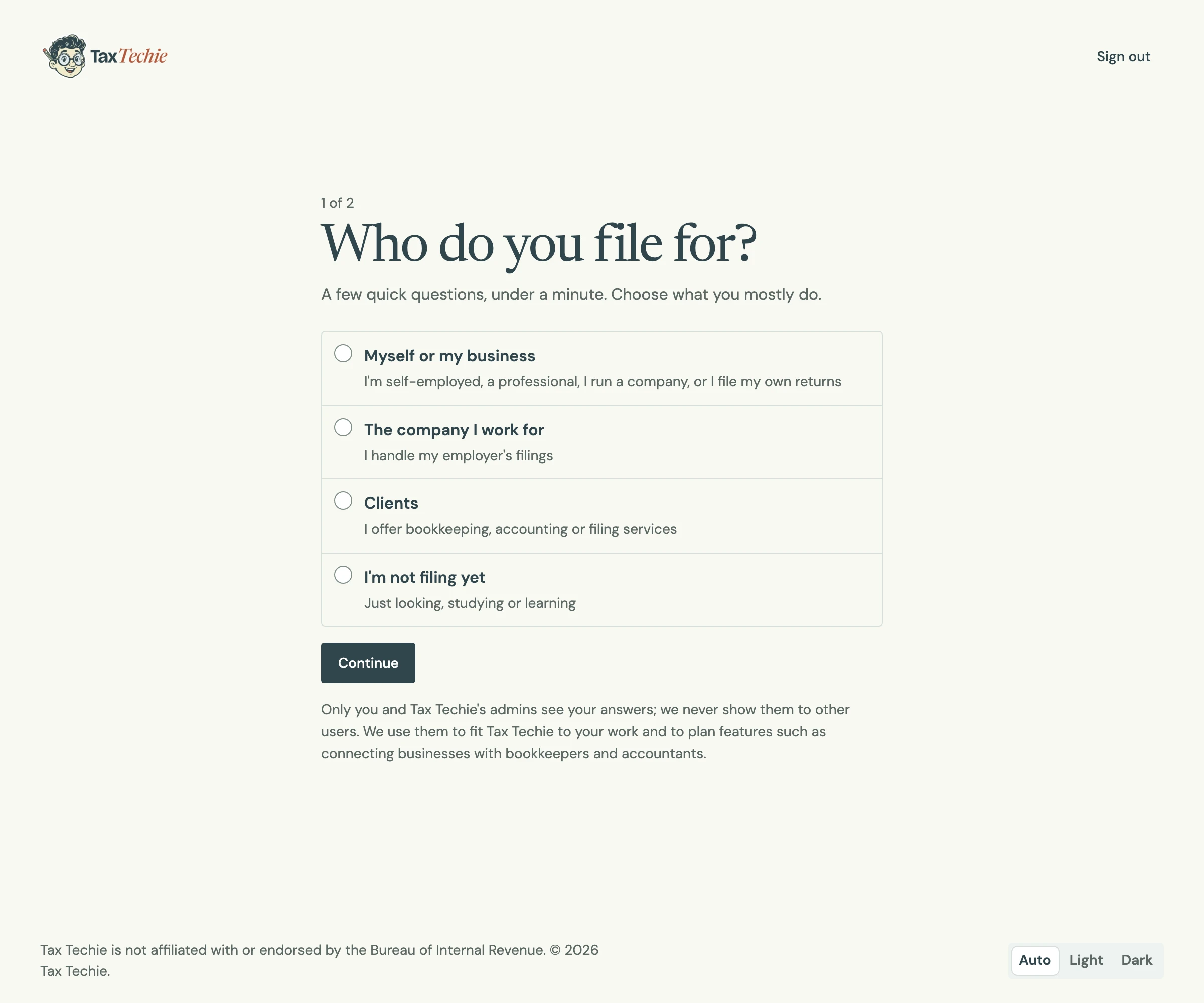
- Under Who do you file for?, choose what you mostly do, then Continue:
- Myself or my business, if you're self-employed, a professional, run a company, or file your own returns.
- The company I work for, if you handle your employer's filings.
- Clients, if you offer bookkeeping, accounting or filing services.
- I'm not filing yet, if you're just looking, studying or learning.
- Answer the few questions that follow, then Continue. If you offer services, Tax Techie also asks
What services do you offer?: tick all that apply. - Choose Save and continue. Tax Techie says
Thanks, you're all set.and opens the page you were going to.
Only you and Tax Techie's admins see your answers; we never show them to other users. We use it to make Tax Techie fit your work and to decide what to build next.
To see or change your answers later, open About you, beside Settings. Choose Change answers, change what you need, and choose Save. Tax Techie says Your answers are saved.
Sign in on the website
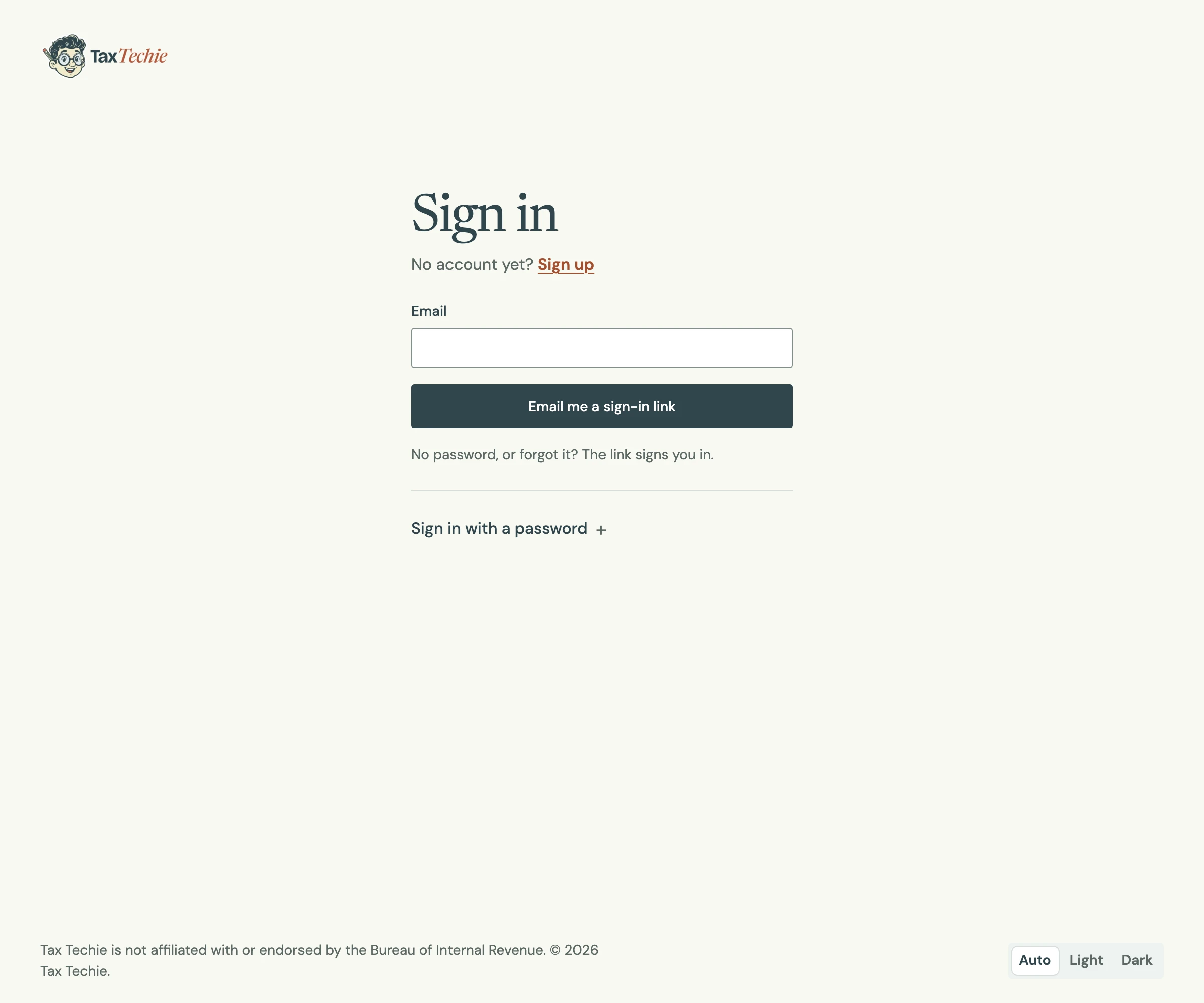
- With an emailed link: type your email and choose Email me a sign-in link. Open the email and choose its link.
- With a password: choose Sign in with a password, type your email and password, then choose Sign in. Tick Keep me signed in on this computer only on your own computer.
If the password is wrong, Tax Techie says Invalid email or password above the form, and the password form stays open.
Verify your mobile number
- In Settings, under Mobile number, choose Verify your mobile number.
- Type a Philippine mobile number, for example
0917 123 4567, and choose Send code. - Type the 6-digit code Tax Techie sends by SMS, and choose Verify. Tax Techie says
Your number is verified.
Sign in from the Tax Techie app
- In the app, choose Sign in with your browser. Your browser opens the Tax Techie website.
- Sign in there if you aren't already, then choose Continue under
Use Tax Techie on this computer? - When the page says
You're signed in. You can close this tab and go back to Tax Techie., go back to the app.
The app's Settings then show who is signed in and which workspace is in use, with Open this workspace on the website, Manage your computers on the website and Sign out.
The app stays signed in on one computer at a time. Signing in on another computer signs the first one out; the website asks first, with Continue and sign out on the other computer's name.
Your computers
The Computers section of the website's Settings lists the computers you've signed in to the app on, with the one in use marked Signed in.
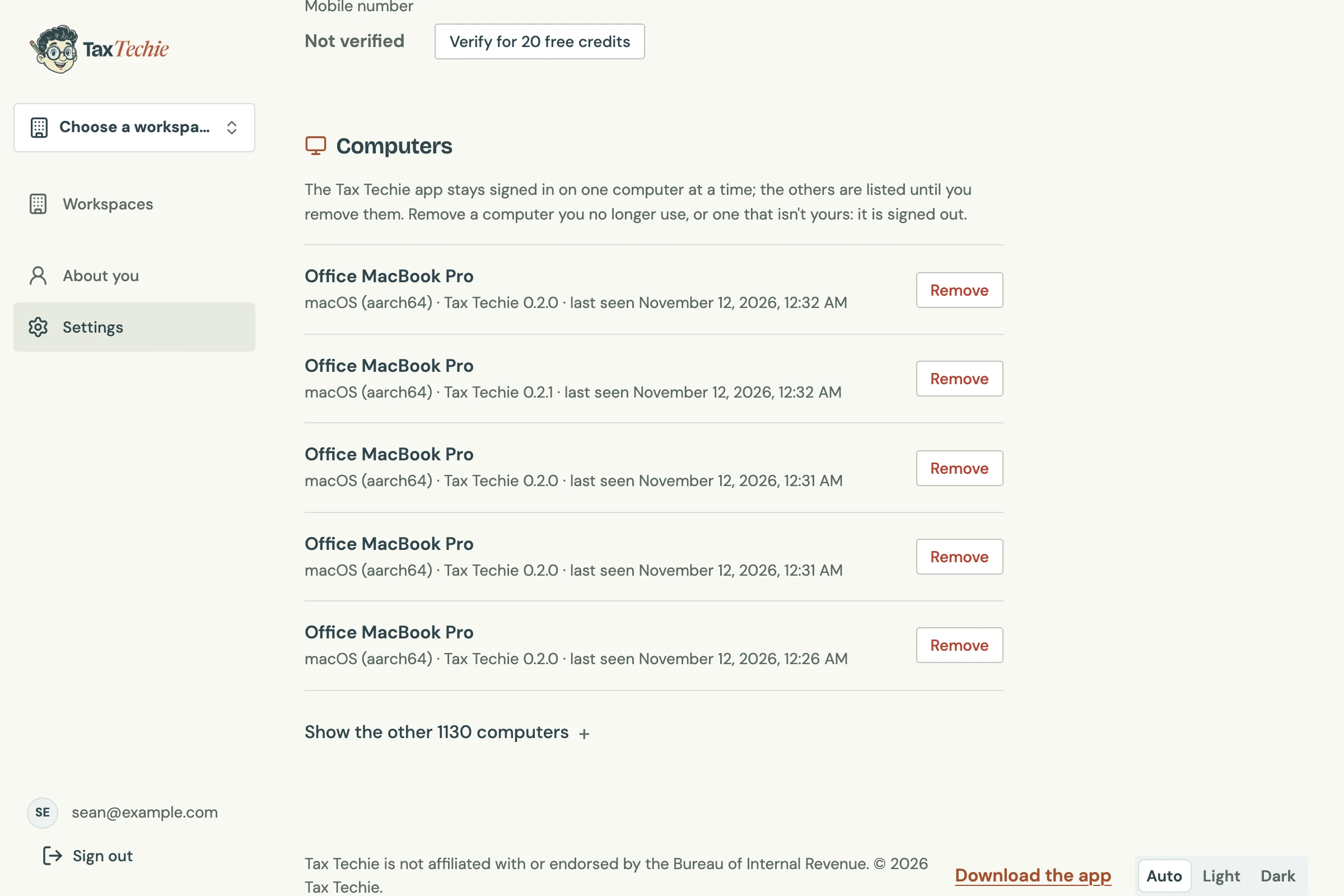
Choose Remove beside a computer you no longer use, or one that isn't yours: it is signed out of Tax Techie.
Questions
I forgot my password. What do I do?
Sign in with an emailed link instead: on the Sign in page, type your email and choose Email me a sign-in link. Then set a new password in Settings.
Why does the website ask who I file for?
So Tax Techie can fit your work, and so we know who uses it as we decide what to build next. It asks once, the first time you sign in on the website; the app never asks. Choose I'm not filing yet if none of the others fits.
Why was the app signed out?
The app tells you why, for example You were signed out because this account signed in on another computer. Sign in again with Sign in with your browser.